
IUCLID fields and navigation
Use this section to help you navigate IUCLID and understand what the common field types are. You can use information on this page alongside the instructions in each section of this guide.
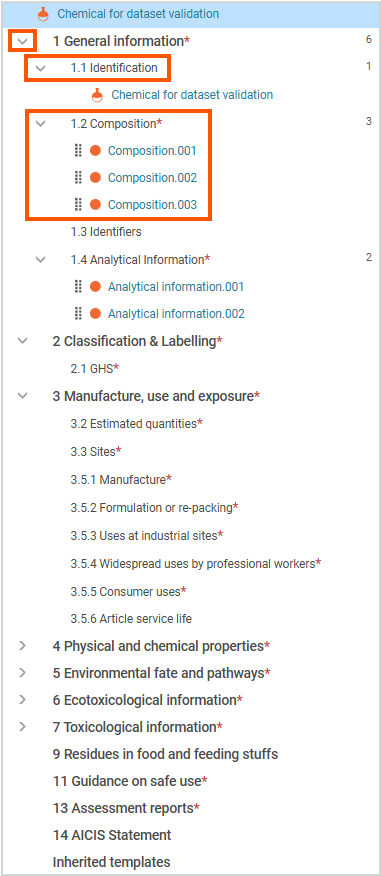
How IUCLID is organised
IUCLID organises information into:
- sections (for example, manufacture, use and exposure)
- documents within each section, including endpoint records
- fields or repeatable tables within each document.
To enter information in IUCLID, open a document and complete its fields.
The sections and documents available depend on the AICIS working context you selected.
ECHA information on IUCLID features
See more detailed information on using the IUCLID interface and navigation published by the European Chemicals Agency (ECHA).
Navigate between sections
- Use the navigation panel on the left-hand side to expand and move between sections
- Select a document to open it and enter information
- Each document contains the fields you need to complete
- Some sections and fields will appear or change depending on your earlier selections.
Common field types in IUCLID
Pick lists
- Select a value from a list
- Use pick lists to ensure consistent and valid data
Short text fields
Use these fields to enter simple, unformatted text, such as:
- short explanations
- supporting comments
- brief descriptions (for example, Details on tonnage reported).
Numeric fields
- Enter numbers only (do not include units or text)
- Select the correct unit separately where required
- Some fields allow decimal values – follow field instructions
Remarks fields
Use this field to provide additional context or explanation. This may include:
- assumptions or conditions
- supporting information
- explanations of how values were derived.
Rich text fields
Rich text fields allow you to enter formatted and structured content. Use them for:
- detailed technical descriptions
- study summaries
- tables or structured data
- images (where supported).
Add entries using New item
If you have more than one value or scenario to report, add a separate entry using New item. If only applies, create a single entry.
Use this to report each value or scenario separately. For example:
- multiple compositions
- multiple exposure scenarios
- multiple results.
Each entry represents a separate value or scenario within the same document.
Add nested entries
Some sections require multiple levels of information:
- First, add a main entry using New item.
- Then add additional entries within it, also using New item.
Example – Section 3 (Manufacture, use and exposure):
- Create a contributing scenario.
- Then add exposure or release information within that scenario.
Repeatable fields/tables
Create a reusable entity if the same information is used in more than one place (for example, a site used in multiple sections).
Repeatable fields (tables) let you add multiple entries within a single document.
Each entry represents a separate value or scenario. For example, multiple results or exposure scenarios.
Select New Item to add each additional entry.
Dynamic fields
Some fields appear or change depending on your selections.
Confidentiality fields
You can flag some fields as confidential business information (CBI).
See our CBI guidance for requirements and instructions
Tips for completing IUCLID fields
Each section will remind you to:
- complete all required fields – do not rely on attachments alone, they are not enough
- use the structured fields wherever available (for example, pick lists and tables)
- use Remarks to explain complex information
- add separate entries for different scenarios or values.
IUCLID document numbering
IUCLID automatically assigns documents numbers (for example, .001,.002) when you create documents. These system generated numbers reflect the order in which documents are created. You do not need to manage or edit numbering.
Next, tips on managing confidential business information in IUCLID