AICIS Business Services and all searchable databases, including Inventory and assessments, will be unavailable at 6–11pm (AEST) on Friday 19 June.

Upload a valid IUCLID6 file for your chemical dossier

Use this information to understand what checks you must make before you upload your dossier, and how to submit in AICIS Business Services. 

What is a valid IUCLID dossier?

A valid IUCLID dossier must:

  • pass all submission checks (no failures)
  • have quality warnings addressed or explained
  • be exported as .i6z file
  • be exported using 'previous major version'
  • reflect your final dataset.

A valid IUCLID file is a dossier exported from IUCLID to AICIS Business Services. 

Before you export your dossier, you must validate your dataset in IUCLID using the Validation assistant.

How to run validation

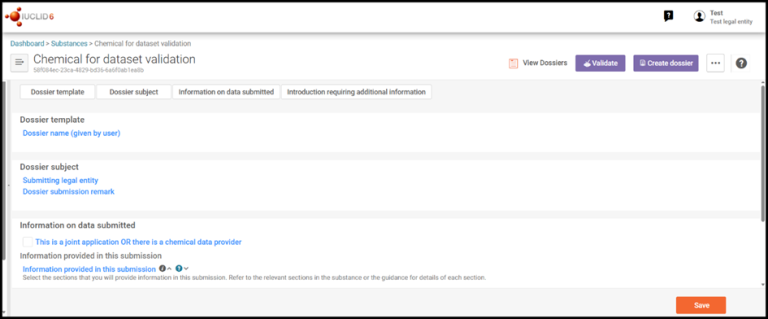
1. Open your list of datasets under Substances and select the relevant dataset

"This image is a screenshot of the IUCLID screen for dataset validation"

2. Confirm the chemical dataset you wish to validate is open

Check for the correct chemical name.

3. Confirm the AICIS working context matches your application type:

  • Comparable hazard assessment
  • Environment focus
  • Health and environment focus
  • Health focus 
  • Very low to low risk.

Do not select Assessment and evaluation.
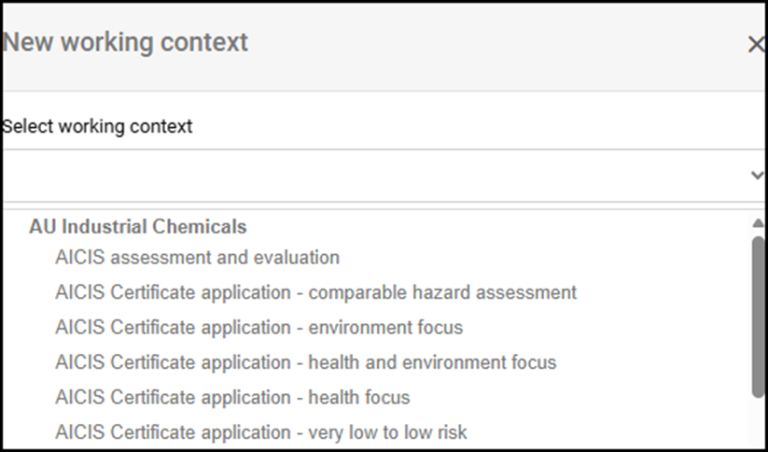
" "This image is a screenshot of the IUCLID screen for application type"

4. Select the Validate button

5. Complete the following information:

 Dossier name – enter a clearly identifiable dossier name (Example: CA12345 – chemical XX). 
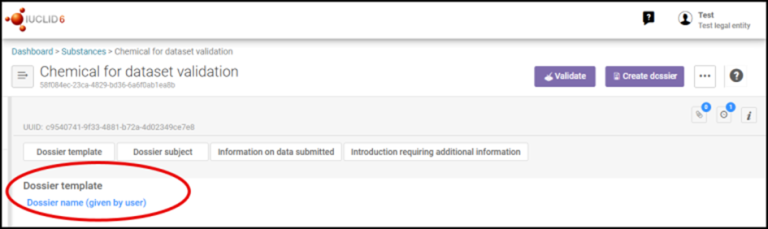
"This image is a screenshot of the IUCLID screen for dataset validation"

This image shows where you enter the dossier name in IUCLID.

Information on data submitted – Answering the following identifies the applicable rules and protects confidentiality of information. 

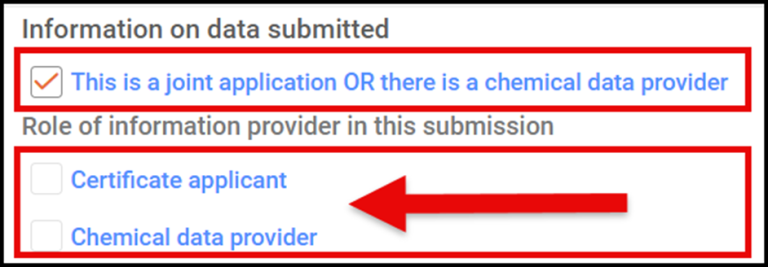
Select the checkbox if the application is a joint application OR there is a chemical data provider.

If there is, select your role:

  • Certificate applicant
  • Chemical data provider

Leave blank if not applicable.

"This image is a screenshot of the IUCLID screen for information on data submitted""

This image is a screenshot showing information you need to select if this is a joint application or if there is a chemical data provider.

Information provided in this submission – select all boxes that apply to the information you are providing:

  • Identity, composition and analytical information
  • Classification and labelling
  • Manufacture, use and exposure
  • Physical and chemical properties
  • Environmental fate and pathways
  • Ecotoxicological and toxicological information
  • Guidance on safe use.

Introduction requiring additional information – this relates to introductions of chemicals that are a specified class of introduction.

"This image is a screenshot of the IUCLID screen for an introduction requiring additional information"

This image shows where you need to indicate if the introduction is of a chemical that is a specified class of introduction.

Select No class relevant if it is not a specified class of introduction.

If the application is for a specified class of introduction, select the relevant class under Class of introduction.

  • biochemicals
  • certain chemicals at the nanoscale
  •  chemicals for end use as biocidal actives
  • chemicals for end use in articles that are children's toys or children's care products
  • chemicals for end use in articles with food contact
  • chemicals for end use in tattoo inks
  • designated fluorinated chemicals - refer to the AICIS website for additional information requirements for the assessed chemical and fluorinated degradation products
  • chemicals that are intentionally released to the environment during use (designated kind of release into the environment)
  • chemicals with an end use in firefighting (designated kind of release into the environment)
  • chemicals with an end use offshore (designated kind of release into the environment)
  • genetically modified products
  • highly branched organic chemicals
  • persistent gas
  • polyhalogenated organic chemicals
  • UV filters.

6. Select Validate to generate report

The Validation assistant report produces 2 types of checks:

  • Submission checks – you must fix all errors in this tab. Do not export your dossier until all failures have been fix.
  • Quality checks – these checks assess data and quality consistency. Fix quality check warnings where possible or explain them in the relevant fields.
"This image is a screenshot of the IUCLID screen for validation assistant report"

This image is an example of failures and quality checks you need to address after running the Validation assistant report.

7. Repeat validation

After fixing issues re-run the Validation assistant using the re-validate button. Continue to do this until:

  • no submission check errors remain
  • you have addressed or explained any quality warnings. 

8. Final checks before export

Before exporting confirm:

  • all required sections completed
  • no submission check errors
  • identity information is consistent
  • data aligns with application type
  • CBI included justification
  • key studies are explained
  • any remaining quality warnings are explained.

9. Export your IUCLID dossier

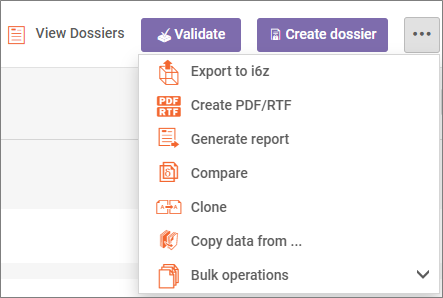
  • Once all validation checks have passed, create your dossier and export it as an .i6z file.
  • Select Export to previous major version*
  • Save the exported file**
"This image is a screenshot of the IUCLID screen to view dossiers"

*Exporting your chemical dossier – AICIS uses a specific version of IUCLID to process applications. These versions change over time. Select 'export to previous major version’ when exporting your chemical dossier to reduce delays in processing your application.

**Always export a new dossier after making any changes – Exported files are read-only snapshots of your dataset at the time of export.

10. Upload your dossier to AICIS Business Services

Certificate applicants, chemical data providers and agents can upload dossiers to AICIS Business Services.

How to upload your dossier to AICIS Business Services

  1. Log into AICIS Business Services.
  2. Open the assessment certificate application
  3. Upload your validated .i6z file.

Remember: you must submit applications and declarations in the AICIS Business Services portal, not in IUCLID.

More manuals and guidance

For more information on using IUCLID, including details on using the IUCLID6 web interface, refer to the IUCLID User Manual on the European Chemicals Agency (ECHA) website. The ECHA website also provides:

  • instructions for installing and updating IUCLID 6
  • other manuals and guidance materials to help you complete IUCLID forms.

Go to the ECHA IUCLID information hub

You can use these resources alongside this AICIS-specific guide if you need more detailed system-level guidance.


Was this page helpful?
For broken links or technical issues, please provide as much detail as possible. Do not include your name, email address and other personal or commercially sensitive information.

Sign up to our monthly newsletter